Saturday, December 19, 2009

reading a directory


Read a Directory

This code reads a directory passed as a string and returns a pointer to a special struct called Directory.

Snippet


  1. /*

  2. * dirlist.c


  3. *

  4.  * mani

  5. */

  6.  

  7. #include <dirent.h>

  8. #include <stdio.h>

  9. #include <string.h>


  10. #include <stdlib.h>

  11. #include "dirlist.h"

  12.  

  13. Directory* readDirectory(char* dirname)

  14. {

  15.         Directory* d = (Directory*) malloc(sizeof(Directory) );


  16.         d->files = (char**) malloc(0);

  17.         d->len = 0;


  18.         d->files[d->len] = 0;

  19.         DIR *dir;


  20.         struct dirent *de;

  21.         dir = opendir(dirname);

  22.         if (dir == NULL)


  23.         {

  24.                 printf("Could not open directry \"%s\"\n", dirname);


  25.                 exit (1);

  26.         }


  27.        

  28.         while ( (de = readdir(dir) ) != NULL )


  29.         {

  30.                 /*

  31.                 * We need to resize the char** in the Directory struct


  32.                 * and then allocate enough space in the char* for the file name

  33.                 * I use sprintf instead of strcpy, or strncpy for no real reason


  34.                 */

  35.                 d->files = (char**) realloc(d->files, sizeof(char*) * ++(d->len) );


  36.                 d->files[d->len - 1] = (char*) malloc (sizeof(char) * (strlen(de->d_name) + 1) );


  37.                 sprintf(d->files[d->len - 1], "%s", de->d_name);


  38.         }

  39.         closedir(dir);

  40.         return d;


  41. }

  42.  

  43.  


Sunday, December 13, 2009

Installing Ubuntu theme

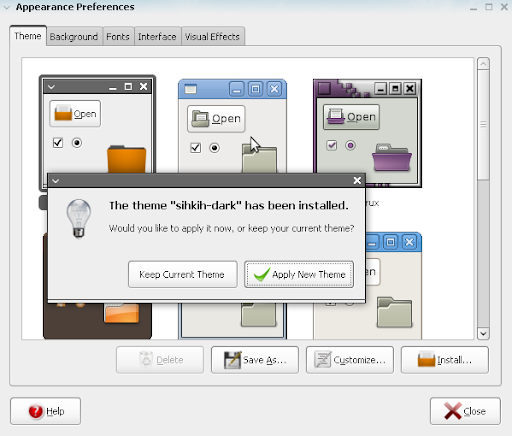
Since most may not know how to install custom themes in ubuntu , here is a quick guide for all those newbies.
Once you have finished downloading the theme , Do the following steps.

Ubuntu Theme installation guide
  • system > preferences > appearance
  • click instal and browse your theme (It should be a tar.gz file)
  • click open and then click apply new theme.

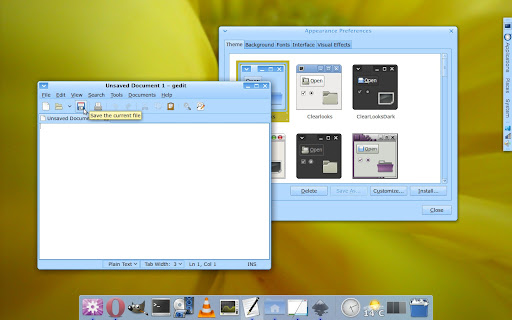
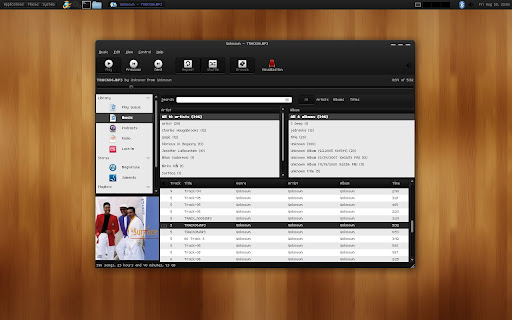
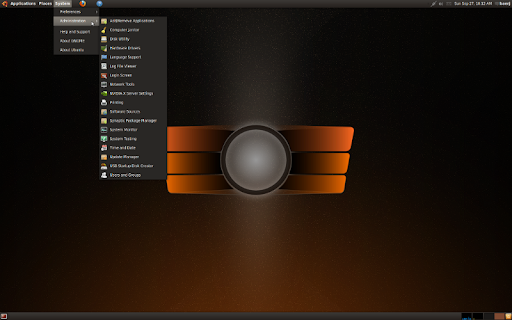
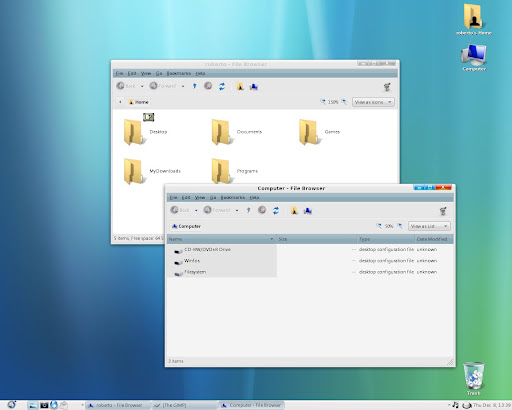
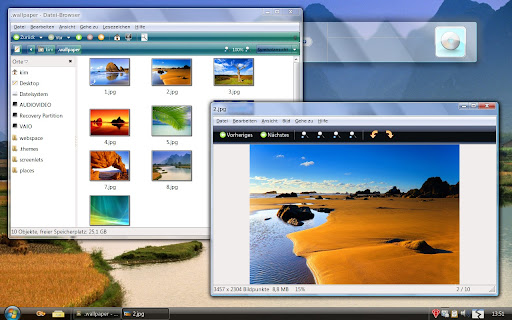
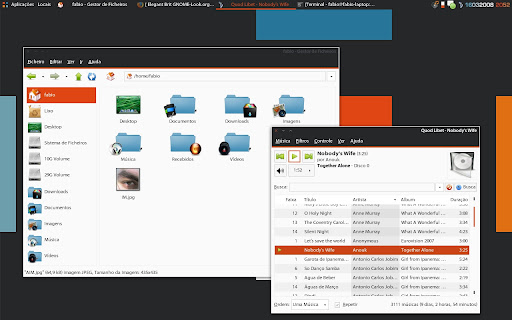
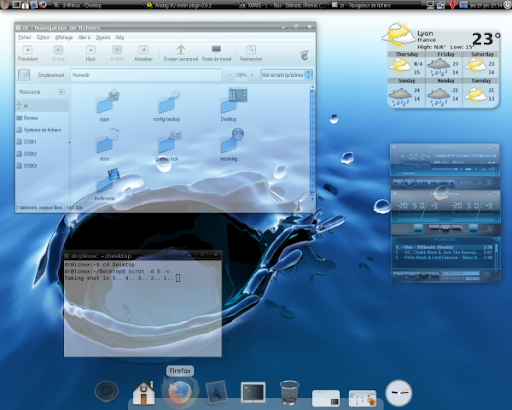
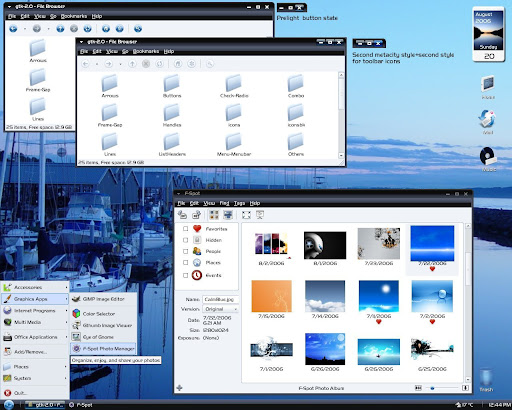
25+ Stunning Ubuntu Themes

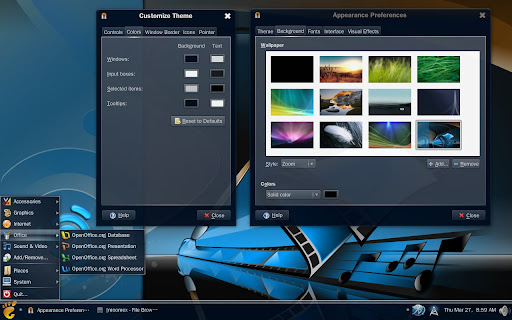
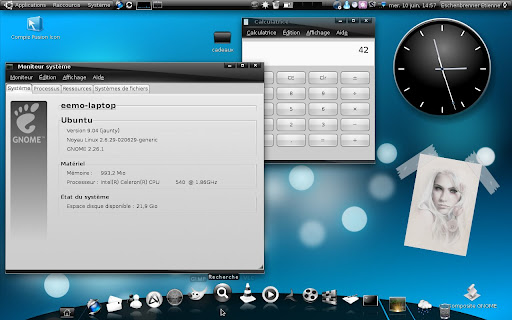
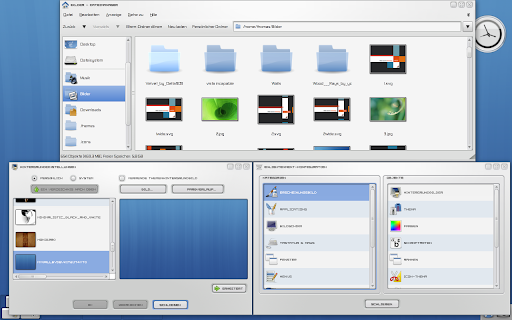
Just like Microsoft windows and Mac OS , Ubuntu too has some cool default desktop themes. Since Ubuntu is using the Gnome desktop environment it is possible to change the theme to any other Gnome theme In this article , I have collected about 27 best looking Ubuntu Themes which can blow your mind away.

You can use these Gnome themes in any Linux based Operating Systems like Ubuntu , Debian , etc

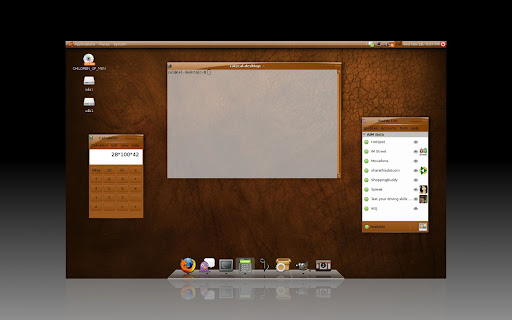
Moomex Ultimatum Gnome Desktop theme

Ubuntu Theme installation guide

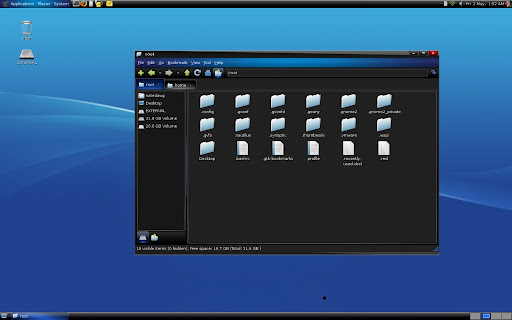
Monochrome Gnome Ubuntu Desktop theme

Monochrome Gnome Ubuntu Desktop theme

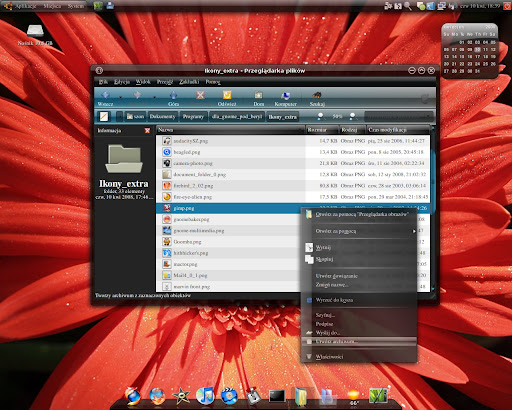
Darker Ice Murrina Ubuntu Desktop theme

Darker Ice Murrina Ubuntu Desktop theme

Raptor Ubuntu Desktop theme

Raptor Ubuntu Desktop theme

Aurora Gnome Desktop theme

Aurora Gnome Desktop theme

BurntOrangeIce Gnome Desktop theme

BurntOrangeIce Gnome Desktop theme

Hardy Theme For Gnome Desktops Customization

Hardy Theme For Gnome Desktops Customization

Blue Joy Gnome Desktop theme

Blue Joy Gnome Desktop theme

BlueSpace Gnome Desktop theme

BlueSpace Gnome Desktop theme

Dark Ice Gnome Desktop theme

Dark Ice Gnome Desktop theme

Willibox Gnome Desktop theme

Willibox Gnome Desktop theme

Soffice Gnome Desktop theme

Soffice Gnome Desktop theme

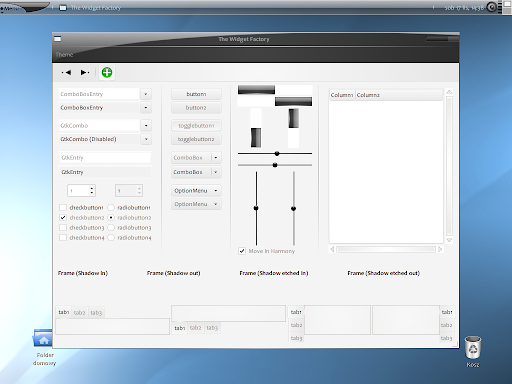
Humanity Gnome Desktop theme

Humanity Gnome Desktop theme

Bluelooks Gnome Desktop theme

Bluelooks Gnome Desktop theme

Silent Night Gnome Desktop theme

Silent Night Gnome Desktop theme

Night impression Gnome Desktop theme

Night impression Gnome Desktop theme

MacOS-X Aqua Gnome Desktop theme

MacOS-X Aqua Gnome Desktop theme

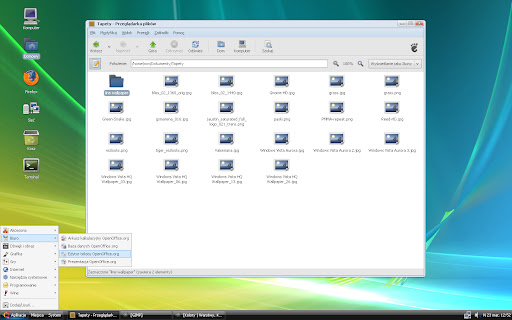
Vistabut Gnome Desktop theme

Vistabut Gnome Desktop theme

Aero-clone Gnome Desktop theme

Aero-clone Gnome Desktop theme

Leopard style Gnome Desktop theme

Leopard style Gnome Desktop theme

Elegant Brit style Gnome Desktop theme

Elegant Brit style Gnome Desktop theme

OrangeLiNstaBlackPlastic Gnome Desktop theme

OrangeLiNstaBlackPlastic Gnome Desktop theme

Ubuntu Dust Gnome Desktop theme

Ubuntu Dust Gnome Desktop theme

Dr’s AquaVista Gnome Desktop theme

Dr's AquaVista Gnome Desktop theme

Elegance Gnome ubuntu Desktop theme

Elegance Gnome ubuntu Desktop theme

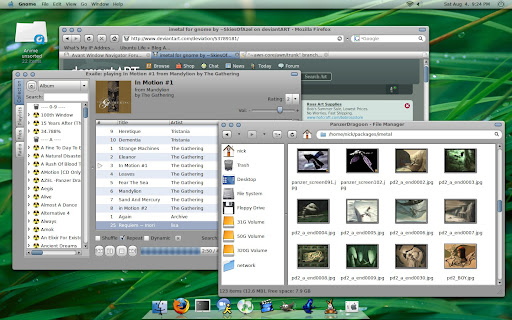
imetal Gnome ubuntu Desktop theme

imetal Gnome ubuntu Desktop theme

Murrina Aero Gnome ubuntu Desktop theme

Murrina Aero Gnome ubuntu Desktop theme
hope you like my collection of gnome desktop themes for Ubuntu. If you know anyother good Ubuntu themes then do let me know , i will add them to this list. See you soon with a new post

Sunday, November 1, 2009

Operating System


Friday, October 16, 2009

co-operate in linux

Work together ......


request

plz explore new concepts ...
my dear group members....

request

plz share your new ideas
my group members.....

request

plz post your programming concepts..
my dear group members...

Sunday, July 19, 2009

Here comes chrome For Linux (Ubuntu)

(This is not Crossover's chromium)

What's the best thing about Google..... hmm ?
I think ..... the people who are smart enough to put their heavy weight efforts to make our job so light weight.It never lets you down if you have started living under their databases or exploring their databases.
I am Linuxer and Linuser , and not comfortable a bit breathing through those Windows...
But I remember september 2008 when Google gave birth to its openSource's baby Chrome was adoptable only to those Bill gates' closed Windows not to openSource itself.
Why did they do so?A open source's venture is not a open source.I didn't understand.
Are they trying to make it more better for open worlds...... hmmm....
That sounds right i guess.
But here is your open chrome (Google chromium's early version) for Linux. They say it is unstable.
But i say it works much finer than Windows IE.

(This is not Crossover's chromium which runs like Wine and emulates Google Chrome)
Here is how it looks like on my laptop.....

What Google says about it.....

Requirements: Intel Pentium 4 / Athlon 64 or later CPU; 32- or 64-bit Ubuntu 8.04 or later, or 32-bit Debian 5. Support for other Linux distributions is planned; unpacking the .deb files by hand may work.

Note: The Linux build still lacks certain privacy features, and is not appropriate for general consumer use.

Note: Installing Google Chrome will add the Google repository so your system will automatically keep Chrome up to date. If you don't want Google's repository, do "sudo touch /etc/defaults/google-chrome" before installing the package.

Download and install the package appropriate for your system (just clicking on it should do the right thing):

If want RPM then install Alien to your system... and convert these deb packages like this way...

DEB to RPM
$ sudo alien -r google-chrome-unstable_current_i386.deb

Enjoy !

Be sure to check out new Google Wave coming soon....
snapshot....


Saturday, July 18, 2009

Configure xorg.conf with ATI

Ubuntu ( aticonfig , xorg.conf) Trouble ...

Configure Aticonfig , Set brigthness and contrast with ATI,
Display settings (Fix login screen after system suspend)


This is a simple guidance for the people who are upset with their ATI configuration over Xorg on ubuntu or some other linux .
If you guise have the ATI driver installed correctly and want to set xorg configuration with the ati to enjoy the benefits of display settings of ATI. It is very easy to change the display contrast and brightness with ATI after using some commands.This tutorial will also help if someone is having trouble when he or she suspend the system and the login screen comes very late and many other problems with display settings.

The first thing you need to do is the fresh installation of ati driver and a reboot or you should have your installed ATI driver working properly.
After doing so, open the terminal and type the following command

$ sudo rm /etc/ati/amdpcsdb
This will delete all existing configuration saved in amdpcsdb which is used by ati driver (Don't worry ati also has amdpcsdb.default file for default configuration).
Then type

$ sudo aticonfig --initial
This will overwrite the xorg configuration and tells the xorg to use ati as a display identifier.

The ATI uses its configuration in /etc/ati/amdpcsdb file and also has a default configuration file /etc/ati/amdpcsdb.default. Every time you boot your system ati will read all configurations from amdpcsdb file so you have to load xorg.conf configuration in amdpcsdb.

$ sudo aticonfig --input=/etc/X11/xorg.conf --tls=1
This will load xorg configuration and refresh amdpcsdb.

After this you will be able to set your display contrast and brightness.
Firstly you have to probe your screen using command

$ aticonfig --query-monitor
Connected monitors: lvds
Enabled monitors: lvds

as in my case it was laptop lcd screen so it comes lvds

You may use if you got an error means RandR is enabled
$ xrandr
Screen 0: minimum 320 x 200, current 1280 x 800, maximum 1280 x 800
default connected 1280x800+0+0 0mm x 0mm
1280x800 60.0*
1280x768 60.0
1280x720 60.0
1024x768 60.0
800x600 60.0
720x480 60.0
640x480 60.0
640x400 60.0
512x384 60.0
400x300 60.0
320x240 60.0
320x200 60.0

You can easily see your display type from these option.
Aticonfig requires the following display type options in the string crt1, lvds, tv, cv, tmds1, crt2, tmds2, tmds2i, dfp3, dfp4, dfp5, dfp6. So you can try one of these until you get the right one.

Then you're all set for changing contrast and brightness
For query contrast and brightness
$ aticonfig --query-dispattrib=lvds,brightness
$ aticonfig --query-dispattrib=lvds,contrast

It will give default, current , max and min values.

For changing contrast and brightness
$ aticonfig --set-dispattrib=lvds,brightness:0
$ aticonfig --set-dispattrib=lvds,contrast:100

Be careful while changing the brightness as after -10 to -20 it becomes very dark and you will not be able to see things clearly, screen may go black . Same is for contrast.

For changing Gamma you can use
$ xgamma
which will return values for red, green and blue
xgamma supports decimal values like 0.85 or 1.0. 1.0 being default.
To make these settings permanent, you will need to edit /etc/X11/xorg.conf.
_______________________________________________________________________________________
The linux system uses the graphics properties from its file called xorg.conf (/etc/X11/xorg.conf). You can use default configuration by fixing the xorg from this command any time you are having trouble with your graphics
$ sudo dpkg-reconfigure -phigh xserver-xorg
Also if you are not able to see the login screen you can use this command then from the rescue or recovery terminal.

Tuesday, June 23, 2009

Linux Guide

General Linux Guides/Links
  1. The Linux Documentation Project : – The Linux Documentation Project
  2. How-To : – Index of /pub/Linux/docs/HOWTO/other-formats/html
  3. Easy Linux : – Main Page -
  4. HowtoForge : – HowtoForge – Linux Howtos and Tutorials | Howtos about Linux and Open Source
  5. Distro Watch : – DistroWatch.com: Put the fun back into computing. Use Linux, BSD.
  6. ELG : – EasyLinuxGuide
  7. MJM Wired : – mjm wired :: Resources
  8. LinuxQuestions.org : – LinuxQuestions.org
  9. Filesystem Standard : – http://www.pathname.com/fhs/pub/fhs-2.3.html
  10. Linux Reality : – Linux Reality

==========================================

Canonical – Ubuntu

  1. Ubuntu Guide :- Ubuntu:Feisty -
  2. Ubuntu Official Guide :- https://help.ubuntu.com/6.10/ubuntu/…e/C/index.html
  3. Wikipedia : https://wiki.ubuntu.com/
  4. Ubuntu Linux Resources :- Ubuntu Linux Resources
  5. Forum :- Ubuntu Forums
  6. Blog :- Ubuntu Blog | UbuntuOS
  7. Mailing Lists :- https://lists.ubuntu.com/mailman/listinfo/
  8. Community :- Ubuntu Community | Ubuntu
  9. Home Page : – Ubuntu Home Page | Ubuntu

==========================================

Canonical – Kubuntu Linux

  1. Kbuntu Guide : Feisty – Kubuntuguide
  2. Kbuntu Documentation : Kubuntu – Documentation
  3. Wikipedia : http://wiki.kubuntu.org/Kubuntu
  4. Forum : Ubuntu Forums
  5. Blog : Kubuntu Breezy – Absolute beginners
  6. How to : https://wiki.kubuntu.org/HelpingKubuntu
  7. Home Page : Kubuntu – The KDE Desktop

==========================================

Canonical Edubuntu Linux

  1. Edubuntu Guide : doc.ubuntu.com/edubuntu/handbook/C/
  2. Edubuntu Documents : Documentation | edubuntu
  3. Wikipedia : http://wiki.edubuntu.org/EdubuntuWiki
  4. How To : UsingEdubuntu | edubuntu
  5. Forum : Ubuntu Forums
  6. FAQ : Frequently Asked Questions | edubuntu
  7. Home Page : Edubuntu Home Page | edubuntu

==========================================

Novell – SUSE Linux

  1. Suse Guide : OS Guide: Suse 9
  2. Suse Wiki : Main Page – SUSE Wiki
  3. Official Guide : Novell Documentation
  4. Forums : SUSE Forums (Powered by Invision Power Board)
  5. SUSE FAQ : Unofficial SUSEFAQ – Unofficial SuSE FAQ
  6. Mailing Lists :- Linux: Linux Operating System—SUSE Linux Enterprise
  7. Home Page : – openSUSE.org

==========================================

Redhat : Fedora Linux

  1. Fedora Guide : Fedora FC6 -
  2. Fedora Frog : – Fedora frog -
  3. Stanton’s Notes : Fedora Core 5 Installation Notes
  4. MJM Wired’s Notes :Personal Fedora Core 6 Installation Guide
  5. Official Guides : Fedora Project, sponsored by Red Hat
  6. Forum : FedoraForum.org – Fedora Core Support Forum & Community
  7. Fedora Solved : Welcome to FedoraSolved.Org — Fedora Solved
  8. Fedora FAO : FAQ – Fedora Project Wiki
  9. Fedora Wiki : FedoraMain – Fedora Project Wiki
  10. Mailing Lists :- redhat.com Mailing Lists
  11. Home Page : – Fedora Project

==========================================

Mandriva Linux

  1. Mandriva Guide : – Mandriva -
  2. Easy Linux Wiki : – Mandriva -
  3. Official Documents :- Documentation – Mandriva Linux
  4. Forums : – Index – Mandriva Club Forum
  5. Blog : – Mandriva Blog
  6. Home Page: – Welcome / Home – Mandriva Linux
  7. Support : – Support – Mandriva Linux
  8. Mailing Lists :- Mandriva Linux Mailing-lists – Mandriva Linux

==========================================

Gentoo Linux

  1. Official Handbook : – Gentoo Linux Documentation — Gentoo Handbook
  2. Gentoo Wiki : – Main Page – Gentoo Linux Wiki
  3. Simple Guide : – Idiot guide to Gentoo Setup
  4. Development Guide : – Gentoo Development Guide: Master Index
  5. Portage : – Gentoo-Portage – News
  6. Fresh Ebuilds : – Gentoo Online Package Database
  7. Forums : – Gentoo Forums :: Index
  8. Blog : – A Blog Of Gentoo and other stuff
  9. Mailing Lists :- Gentoo Linux — Gentoo Mailing Lists
  10. Home Page : – Gentoo Linux — Gentoo Linux News

==========================================

Linspire / Freespire

  1. Linspire Guide : – http://linspireguide.com/
  2. Forums : – Linspire.com Community Forum Archive :: Index
  3. Blog : – LinspireBlog
  4. Wikipedia : Linspire – Wikipedia, the free encyclopedia
  5. Home Page : Linspire – The World’s Easiest Desktop Linux

==========================================

Xandros Linux

  1. Official Guide : – Home Linux Operating Systems – Xandros
  2. Xandros Wiki : – http://www.archlug.org/kwiki/XandrosKwikis
  3. Forums : – forums.xandros.com :: Index
  4. Support : – Xandros Support
  5. FAQ : – Xandros Support
  6. How To : – Home Linux Operating Systems – Xandros
  7. Home Page : – Linux Desktop and Server Operating Systems

==========================================

Knoppix Linux

  1. Knoppix Official Wiki : – Main Page – Knoppix Documentation Wiki
  2. Forums : – Knoppix Forum
  3. FAQ : – Knoppix FAQ – Knoppix Documentation Wiki
  4. Mailing List :- Mailing List – Knoppix Documentation Wiki
  5. About : – KNOPPIX – Live Linux Filesystem On CD
  6. Home Page : – Knoppix Linux

==========================================

Debian GNU/Linux

  1. Debian Linux : – Debian Linux Tutorial – Beginners Guide To Linux Servers and Networking Installation and Set Up with Instructions On How To Configure A Home Server
  2. Users Manual : – Debian — DDP Users’ Manuals
  3. Debian Guide : – Dwarf’s Guide to Debian GNU/Linux
  4. Debian Guide : – GNU/Linux Desktop Survival Guide
  5. Wikipedia : – FrontPage – Debian Wiki
  6. Administration Resources : – Debian GNU/Linux System Administration Resources
  7. Debian FAQ : – The Debian GNU/Linux FAQ
  8. Debian Help : – debianHELP | Militantly FREE software support.
  9. Debian Forums : – Debian User Forums :: Index
  10. Mailing Lists :- Debian — Mailing Lists
  11. Home Page : – Debian — The Universal Operating System
  12. Support : – Debian — Support

==========================================

Slackware Linux

  1. Slackbook : – The Revised Slackware Book Project
  2. How-To : – LinuxPackages: Howto
  3. Forum : – LinuxPackages :: Index
  4. Handbook : – Slackware Handbook | The Slackware Handbook
  5. Basics : – Slackware Linux Basics
  6. Help Forum : – Slackware Help Forum — Slackers helping slackers. :: Index
  7. FAQ : – The Slackware Linux Project: Frequently Asked Questions
  8. Mailing Lists :- The Slackware Linux Project: Mailing List Info
  9. Home Page : – The Slackware Linux Project
  10. Advisor : – The Slackware Linux Project: Slackware Security Advisories
  11. Help Install : – The Slackware Linux Project: Installation Help

==========================================

FreeBSD Linux

  1. FreeBSD Handbook : – FreeBSD Handbook
  2. Basics : – FreeBSD Basics
  3. Diary : – The FreeBSD Diary
  4. The Complete : – The Complete FreeBSD
  5. Forums : – bsdforums.org – FreeBSD, OpenBSD, NetBSD, MacOS X, Darwin, Linux, BSD Unix forums, message boards, discussions and news.
  6. Blog : – FreeBSD Server Administration
  7. Community : – FreeBSD Community
  8. FAQ : – Frequently Asked Questions for FreeBSD 5.X and 6.X
  9. Home Page : The FreeBSD Project

==========================================

Linux Mint

Wikipedia : Welcome to Wikimint! – Wikimint
Getting Started : Getting Started with Linux Mint LG #137
Forum : – Linux Mint Forums :: Index – Linux Mint Forums
Support : – The Linux Mint Support Center
Home Page : Linux Mint: Linux for the Desktop

==========================================

DesktopBSD Linux

==========================================

Saboyon Linux

Wikipedia : – Main Page – Sabayon
Planet : – Planet Sabayon Linux
Forum : – www.sabayonlinux.org :: Index
FAQ : – FAQ – Sabayon
Blog : – Seth Nickell – Design Fu : sabayon
SVN : – WebSVN – Subversion Repositories
Home Page : – Sabayon Linux Project Website

==========================================

PC-BSD Linux

  1. Documentation : – PC-BSD Documentation
  2. Forum : – PC-BSD Forum :: Index
  3. Download PBI’s : – pbiDIR – Your PC-BSD software
  4. Blog : – PC-BSD | Blog
  5. Mailing Lists :- PC-BSD – Personal Computing, served up BSD Style!
  6. Support : – PC-BSD – Personal Computing, served up BSD Style!
  7. Community Service : – PC-BSD – Personal Computing, served up BSD Style!
  8. Data Base : – PC-BSD Knowledge Database – powered by phpMyFAQ 1.6.11
  9. Home Page : – PC-BSD – Personal Computing, served up BSD Style!

==========================================

Hope you all liked it.

NiXmuzicBoXes

NiXmuzicBoX.1.rock
NiXmuzicBoX.2.rock/punk
NiXmuzicBoX.3.top40
NiXmuzicBoX.4.rap

Monday, June 22, 2009

NiXmuzicBoX.4.rap

Eminem - RELAPSE
01. Intro
02. Crack A Bottle ft.50 cent Dr.Dre
03. Lowdowndirty
04. Monkey see monkey do
05. Scary Movie
06. What do you got
07. Can I Bitch
08. Wanksta Freestyle
09. My Fault
10. Stir Crazy
11. Off The Wall feat. Redman
12. The Bad Guys Always Die feat. Dr Dre
13. Nothing To Do
14. Till I Collapse
15. Puke
16. Business
17. Bin Laden Diss
18. Slow Yo Roll feat D12
19. 8 Mile battle freestyles
20. +Bonus Track+ Crack A Bottle Ft. Dr. Dre 50 Cent

Dowlload links

http://rapidshare.com/files/231611197/E32.part1.rar
http://rapidshare.com/files/231609894/E32.part2.rar